
Have you ever wished you could just describe an app or a game and have it appear on your screen? No coding, no complicated software, just… magic?
Welcome to Gemini Canvas. At teachthebrave.com, we call this the “Brave Way” to build. If you can send a text message, you can build a functional program. Here is exactly how to do it from absolute zero.
Wait… What is “Canvas”?
Most people use AI like a search engine—you ask a question, it gives you a paragraph. Canvas is different. Think of it as a digital workbench. Instead of just talking to you, Gemini opens up a side window (the “Canvas”) where it actually builds the thing you asked for. You can see the code, but more importantly, you can see the finished product and play with it right there.
Step 1: How to Get There (The Secret Button)
You don’t need to download a single thing to start building. Just follow these steps:
- Head to gemini.google.com.
- Look at the bottom of your screen right where you usually type your messages.
- Click the “Tools” button. It’s located right next to the text box.
- Select “Canvas” from the list of options that pops up.

Boom. You’ve just unlocked “Builder Mode.” Your screen will split into two, giving you a dedicated workspace on the right to watch your app come to life!
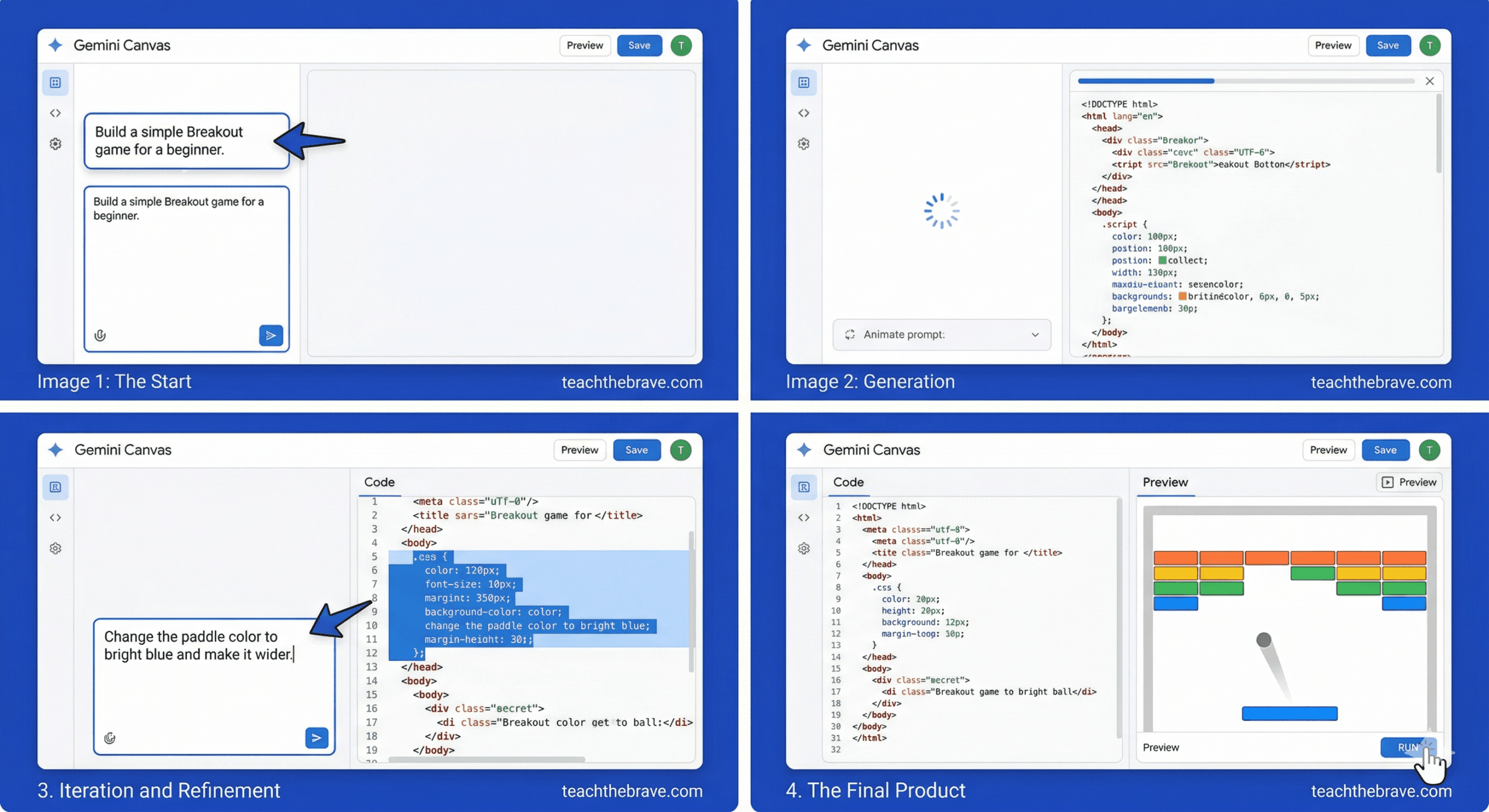
🕹️ Step 2: The Walkthrough (Building “Breakout”)
Let’s build a game together. Follow these pictures to see exactly what your screen will look like:
Your Visual Cheat Sheet

Now, BE BRAVE!
The days of just “dreaming” about your app or game are over. It’s time to stop talking and start building. With Gemini Canvas, the only thing standing between you and a functional program is a simple text message.
Go ahead—click that Tools button, open a new Canvas, and watch your thoughts transform into action right before your eyes.
The digital world is waiting for what you’ll create next. Are you brave enough to start?